
One possible crisis many, if not all, of us have faced is the loss, damaging, or accidental wiping of the device on which all of our 2fa codes reside. If using an app like Authy that allows for backup codes, this crisis could be short lived and fairly low on the inconvenience scale. However, with an app like Google Authenticator, for which you would have had to print or write down the one-time back-up codes in advance, this could be potentially catastrophic in terms of time, effort, and lost access to the accounts the 2fa codes were protecting.
Now, however, Google has caught up, and they have released cloud backups for their Authenticator app. This is relief for many who like to use Google’s Authenticator because, if set up correctly, just signing back into your Google Account on the new device will give you access to your codes, which would have previously been lost if a phone had been stolen, lost, damaged, or wiped with the codes still on it.
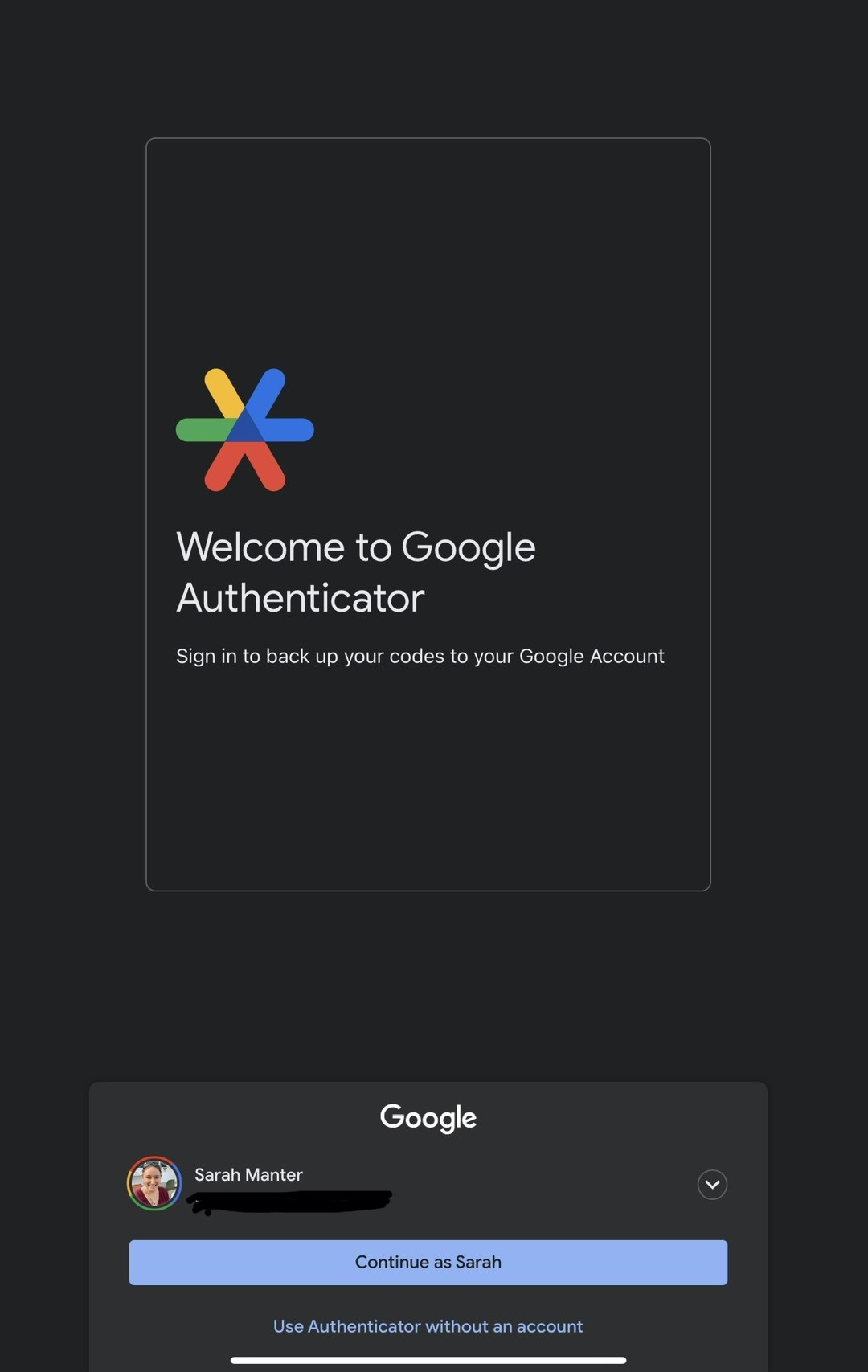
It’s important, however, to make sure that you have it set up/signed in correctly because there is an option to add codes without signing into an account, which does not provide the back-up convenience of allowing you access to your codes through your Google account in unlucky cases of life getting in the way.
The following instructions are for first time users, as I did not have any codes in my original version of the authenticator and had previously deleted it before trying to download the newer version, so I was starting from scratch. If you already have codes in yours, please make sure you’ve printed off/saved your one-time backup codes somewhere before you try upgrading to the newer version, just to be safe. Even better, if you have more than one device, try downloading the app on a different one from the one your codes are stored on first, as you can now have your codes on multiple devices with Google Authenticator, like you’ve been able to do with Authy. We don’t want you to lose the codes in the process of trying to back them up.
The first important step is to make sure you have downloaded the most updated version of Google Authenticator. (If you still have the old one downloaded, it may be easy to tell, as they’ve gone as far as to switch to a new logo for the app as well.)
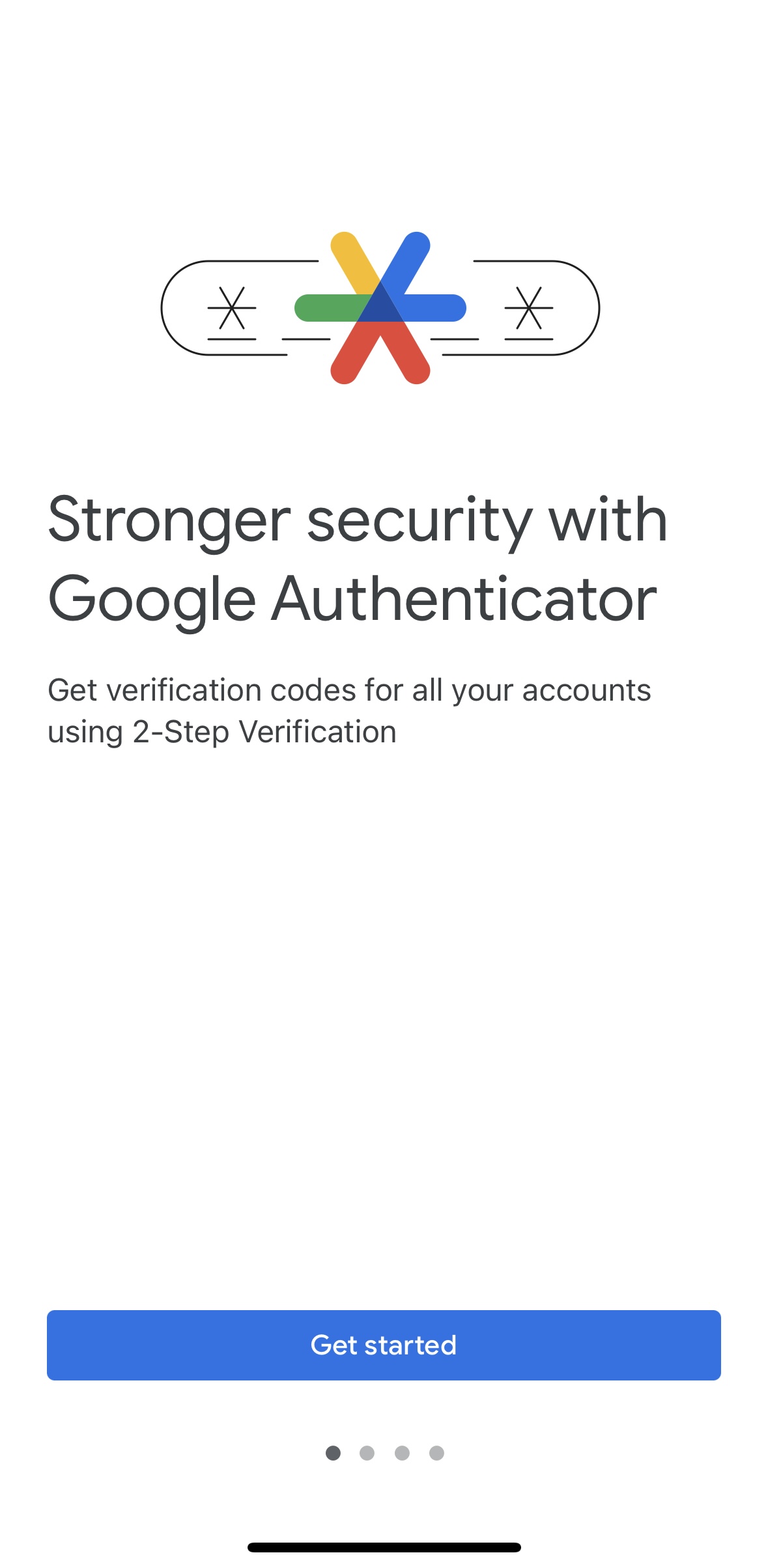
When you open the app for the first time, you will see a screen that looks something like this one. Click on the Get Started button.
You’ll then want to sign in or stay signed in to your Google Account. If you don’t have one yet, you’ll want to sign up for one. I was already signed in to Google on my device, so it allowed me to just stay logged in and continue on as myself.
You’ll then be brought to a screen where you can add codes that looks like this.
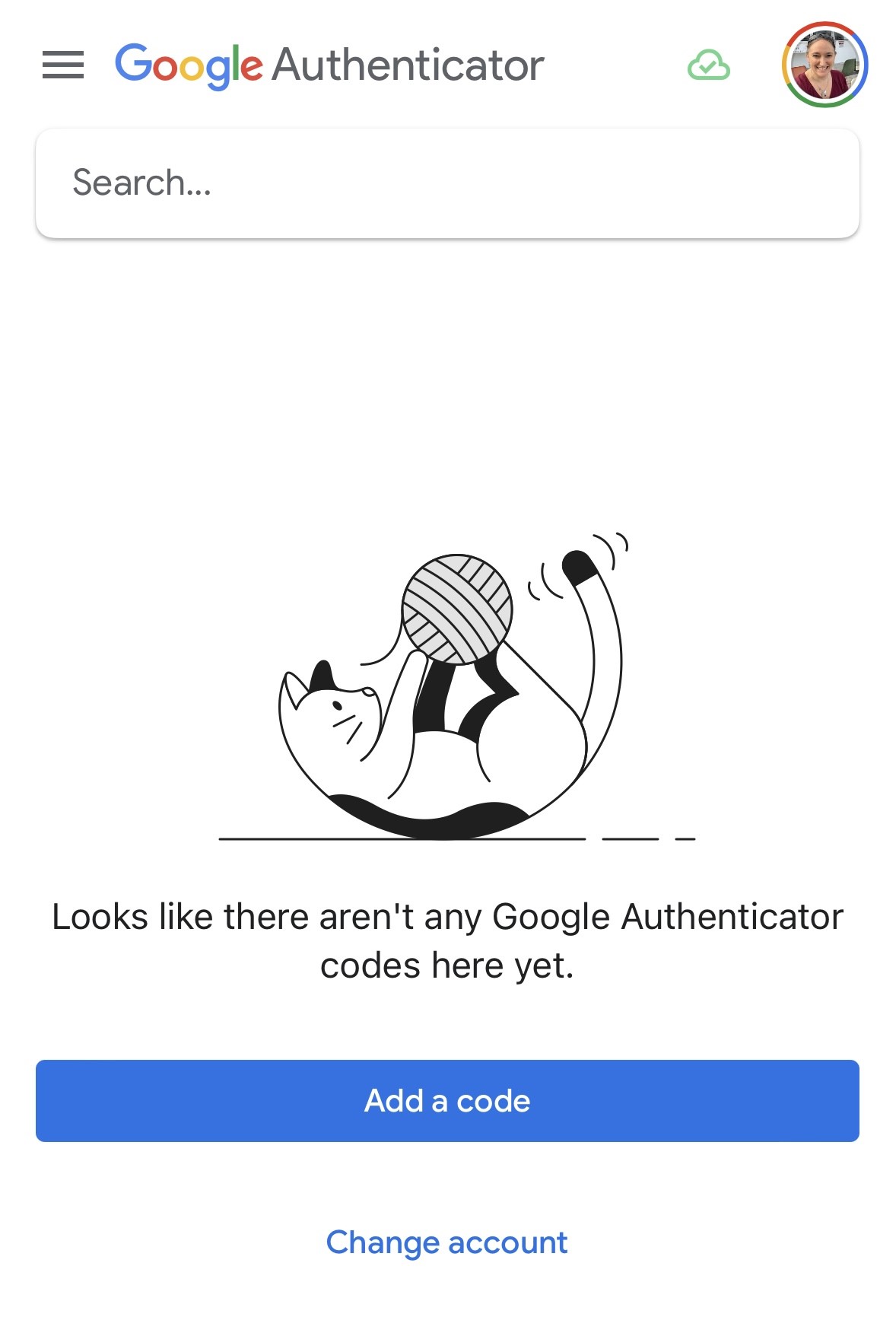
Click “Add code”, and you will be brought to a screen where you can add your code using a QR code or a setup key.
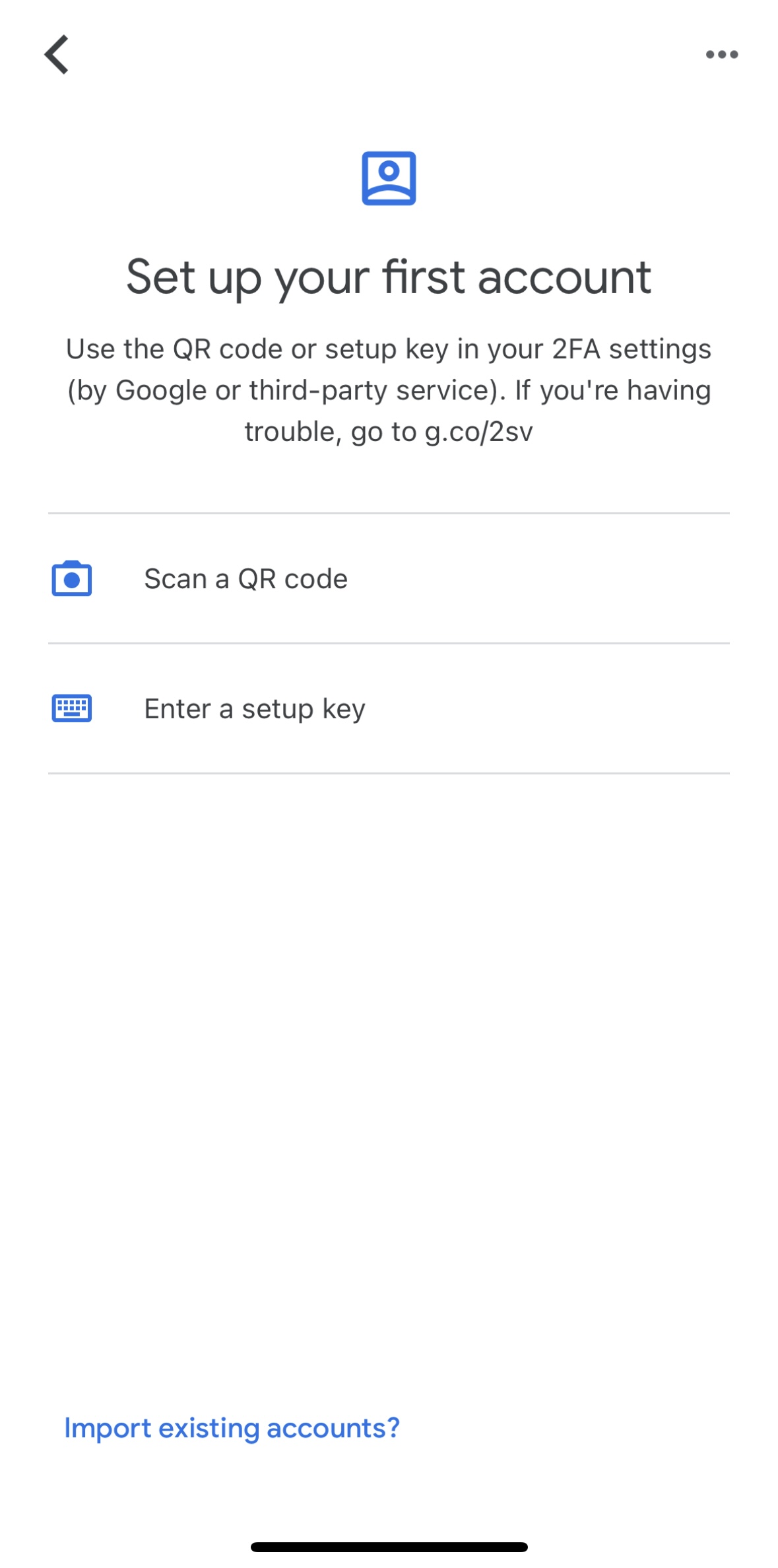
The steps from this point on are pretty typical. Scan the QR code as you normally would, and the code will appear in a list in the app like so:
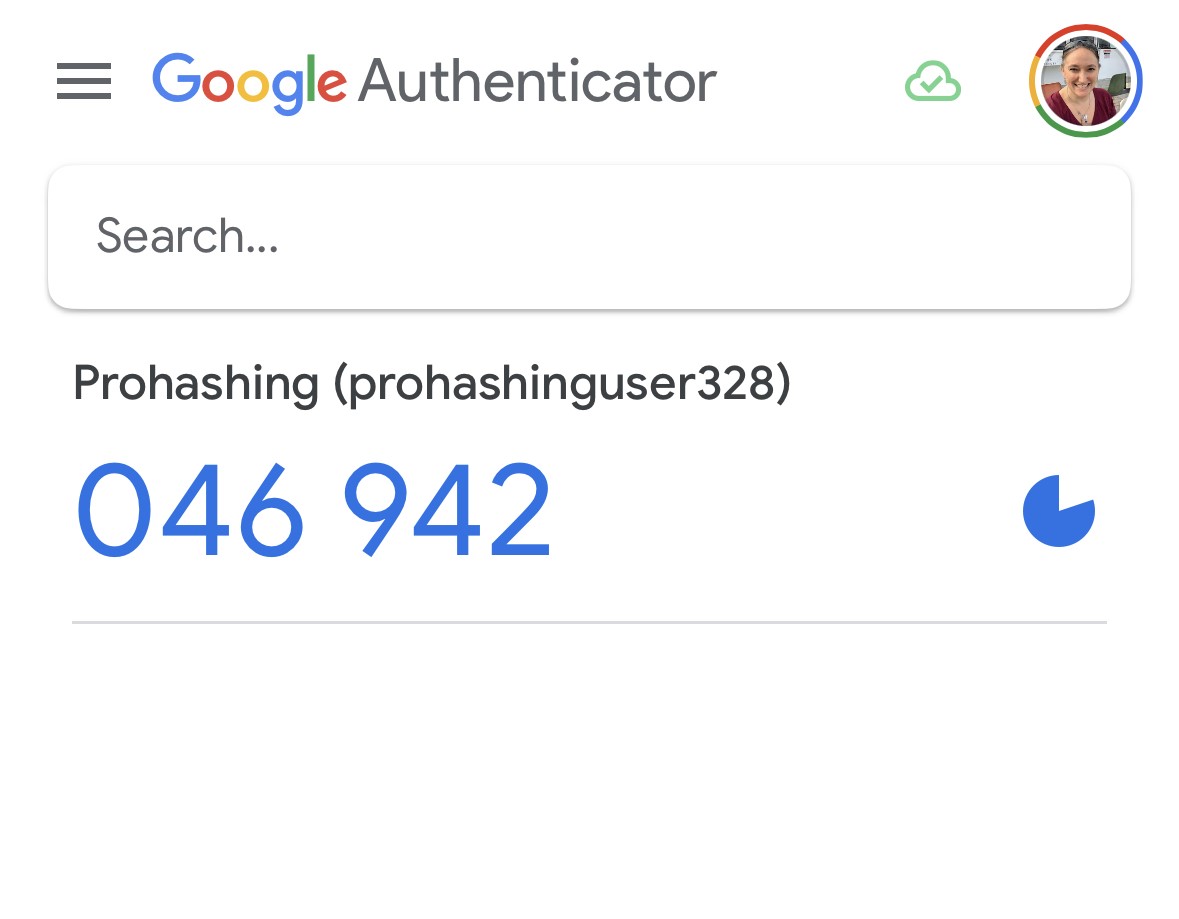
If you press and hold the code, you are taken to a screen where you can edit this code or the order of your codes. Click on the pencil.
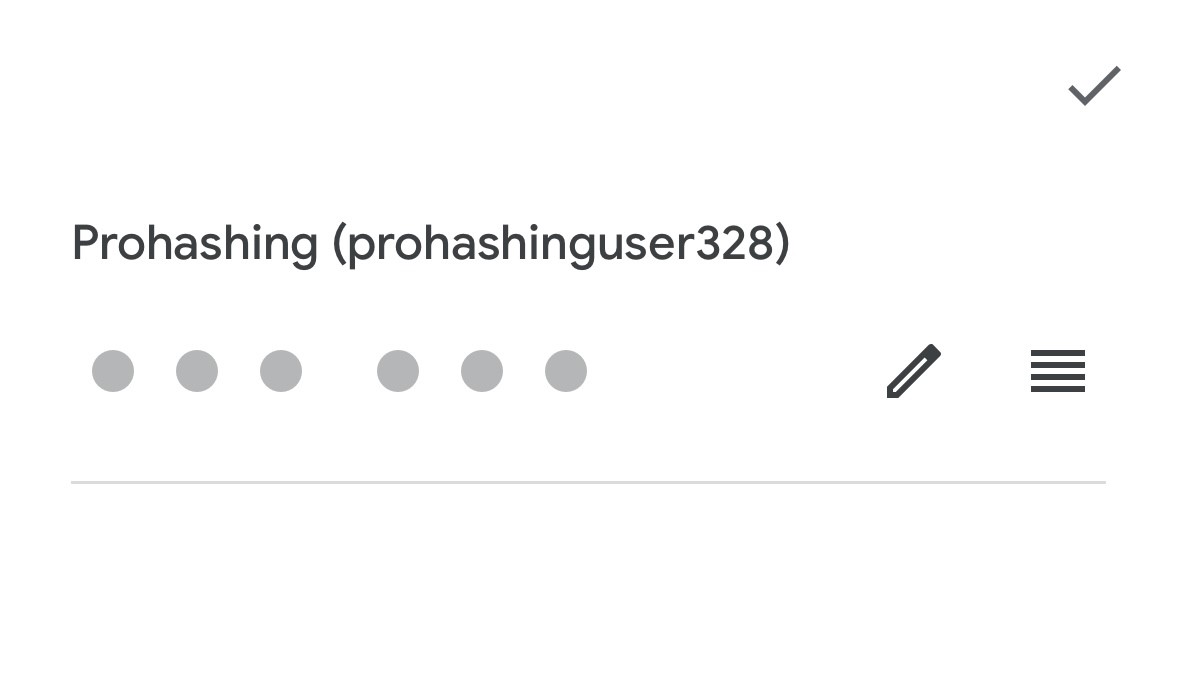
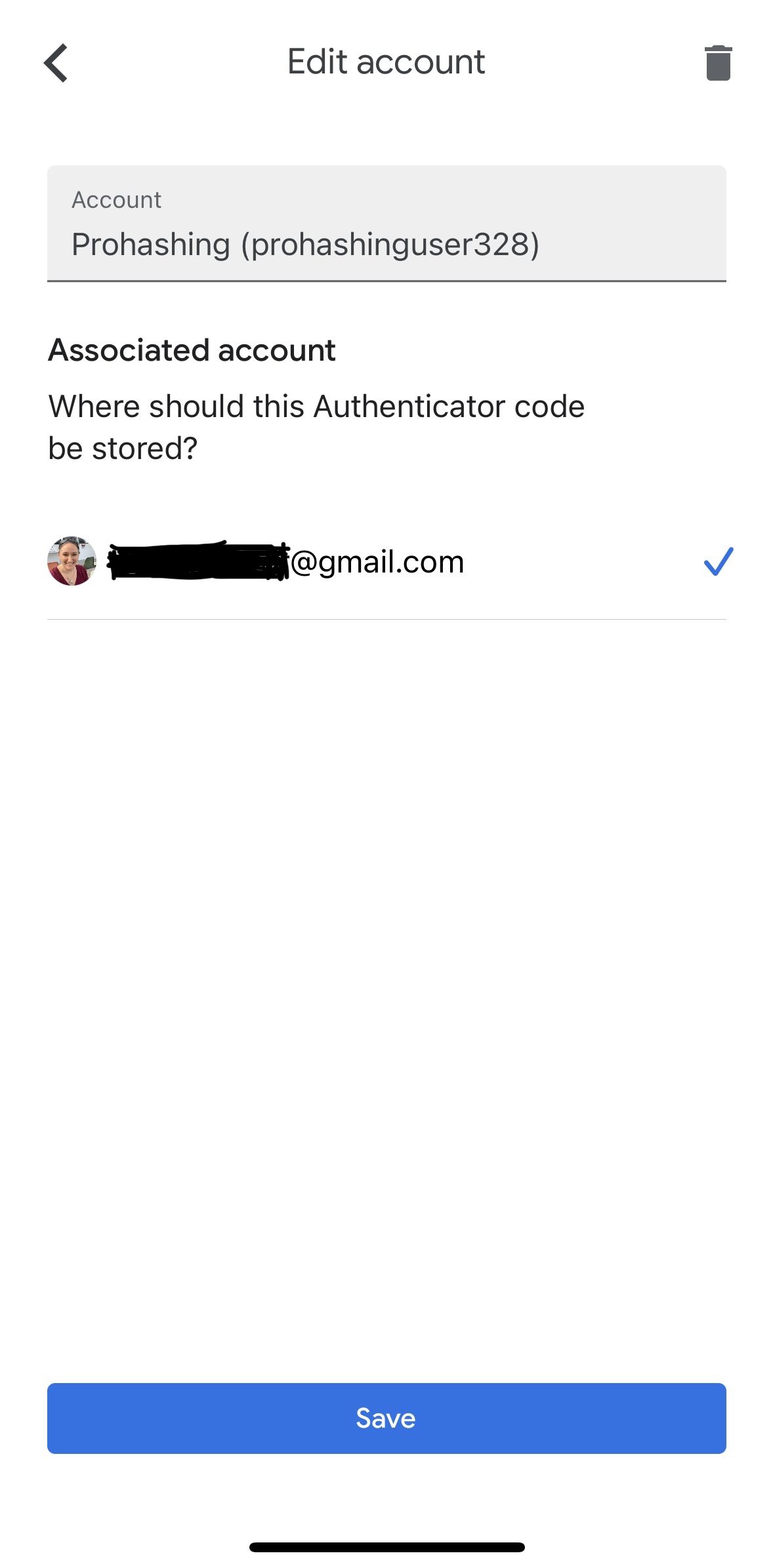
It will bring you to an edit screen where you can check that the code is associated with the correct Gmail account. As you can see here, my Gmail account is appearing as expected and checked to show that it’s associated with my account. It’s important to double check because if you’re not signed in properly, while adding the new code, it gives you the option of adding the code in a way that it’s not associated with an account. This means that the code will not sync up with your new device when signing into the app with your Google login if this device gets lost/damaged.
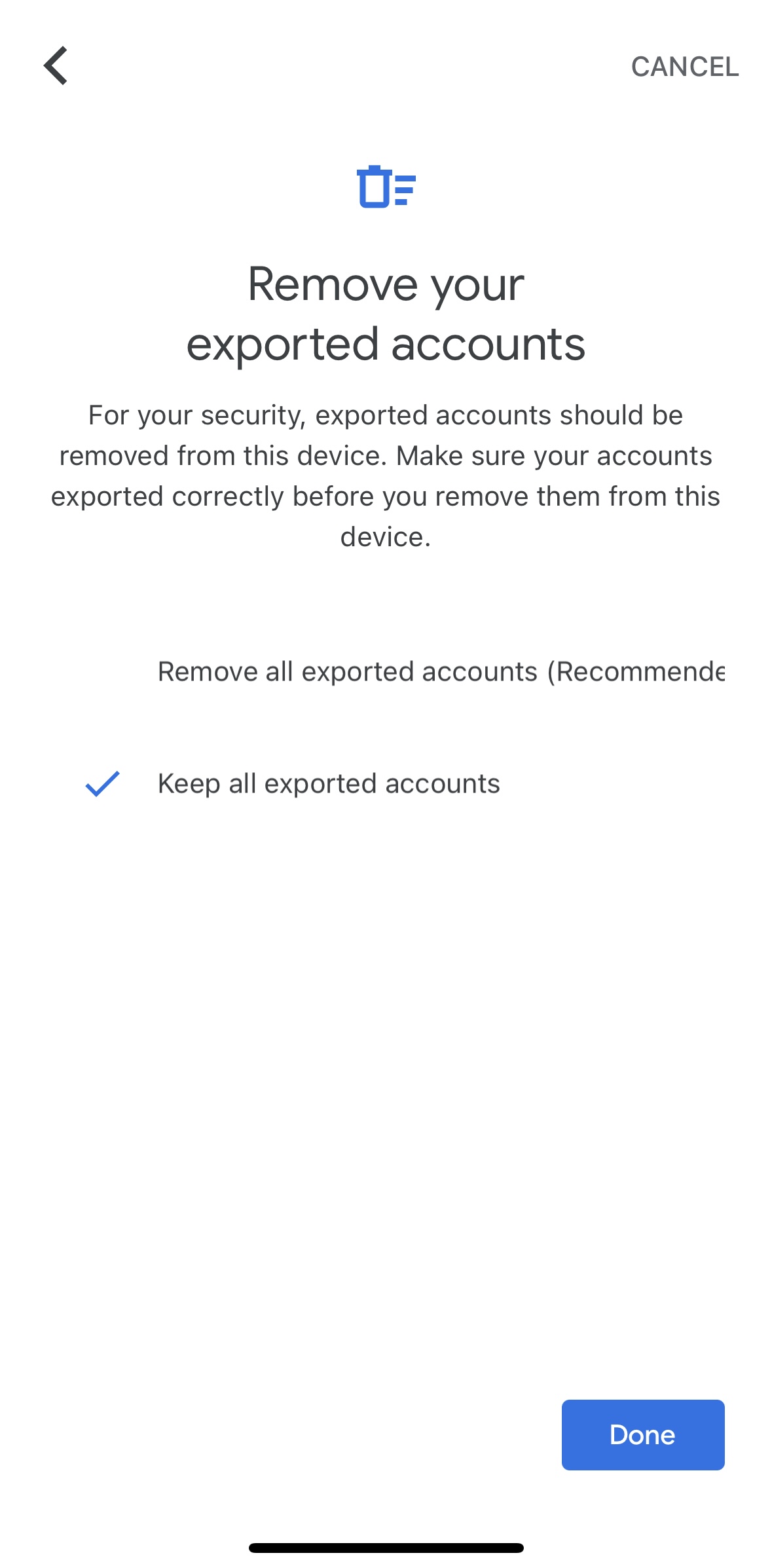
Another great feature is, if you want to back up your codes instead by downloading the app on a second device and being able to view the same codes that you’ve already added using a first device, you’re now able to do so. Once you’ve downloaded the app on the new device, you should be able to just sign in to your Gmail account, and you will see the codes sync up. If you are transferring codes manually from one device to the other, now, by exporting using a qr code, you also have the option of either having the codes deleted from the first device or kept on both devices.
Now that Google accounts require 2-step authentication to log in, having the ability to save the codes to the cloud through your Google Account appears to be significantly safer than it would have been in the past, and hopefully it will save users quite a bit of frustration in the long run being able to back up their codes more efficiently.
The most important thing here, regardless of which app you’re using for 2 factor authentication, is to make sure you know the ins and outs of how the app works, how the codes are backed up, and how to retrieve them before anything goes wrong with the device on which you’re storing your codes.
Comments (0)
Archived discussion. New comments and replies are closed.
No archived comments on this article.